
Every metric in OpenAI Ads Manager, how click and view conversions are counted, the 7, 14 and 30 day windows, reporting lag and how to export daily data.
On this page
- The short version
- Why reporting exists as its own guide
- The metrics
- What we saw in our own account
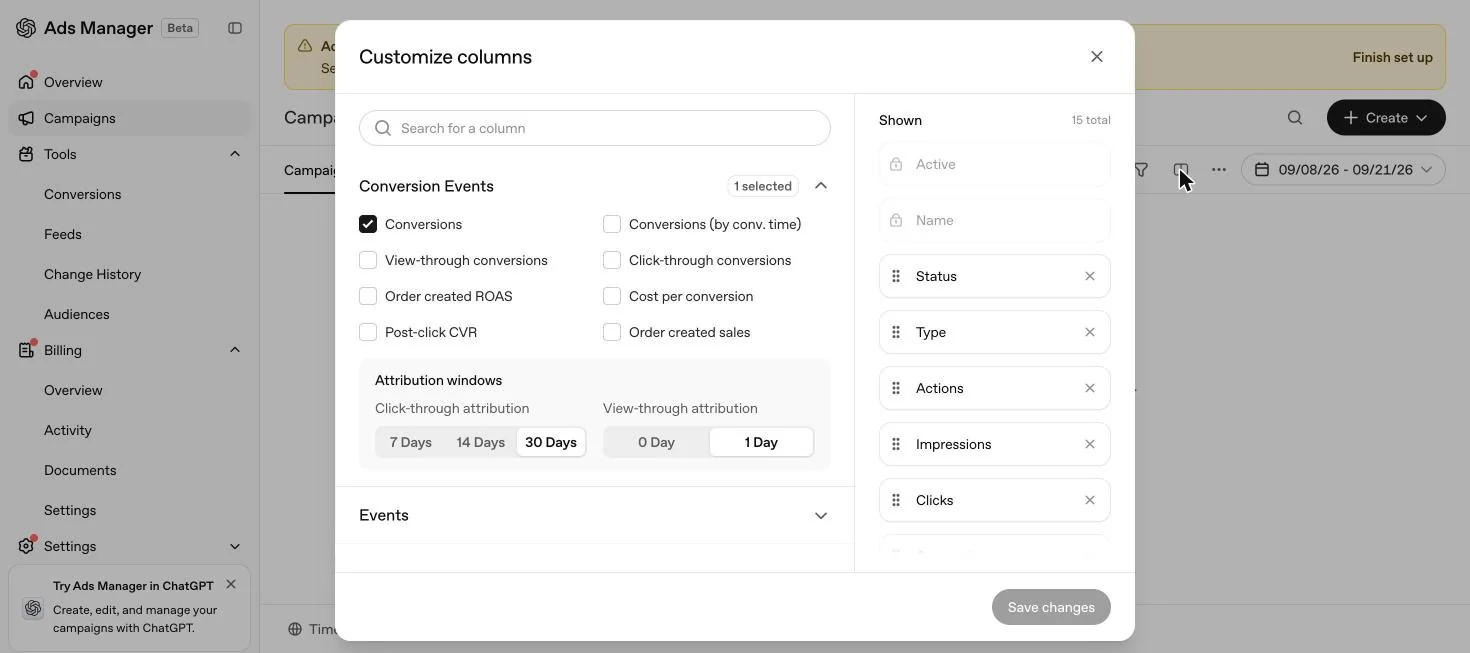
- Edit columns: what you can actually add to a report
- How the Conversions total is built
- Attribution windows
- Event time or conversion time
- Table view, insights charts and where to find each metric
- Dynamic URL parameters
- Definitions used on this page
- Which report to use, when
- What OpenAI has not published, for reporting specifically
- The lags that catch people out
- Breakdowns and exports
- Product reporting
- Illustration: reading a week of reporting in AED
- Carousel and product ad formats: what OpenAI has not published for reporting
- Sending conversions to a CDP or attribution platform
- Why your numbers will not match your other tools
- What goes wrong, and how to check it
- Setting up reporting before you need it
- Three UAE scenarios: reading the same report differently
- A weekly reconciliation routine for the UAE
- How reporting connects to the rest of the account
- Before you contact support about a reporting problem
- Quick answers
The short version
Ads Manager gives you seven core metrics at campaign, ad group and ad level, one Conversions total that can include view through conversions, flexible attribution windows that affect reporting only, and CSV exports with daily values. Most confusion comes from not knowing the lags and the defaults, not from the numbers themselves.
Why reporting exists as its own guide
Campaign creation, tracking setup and reporting are three separate layers of the same account, and it is easy to conflate them. Creating a campaign decides what you can measure. Tracking setup decides whether that measurement actually arrives. Reporting, the subject of this page, is about reading what has arrived correctly once it does, including the lags, the attribution logic and the export options that determine whether the number in front of you means what you think it means. A perfectly tracked account can still be misread if the wrong attribution window or the wrong export type is used, which is the gap this page exists to close.
The metrics
| Metric | Meaning |
|---|---|
| Impressions | Times your ads were shown |
| Clicks | Times people clicked your ads |
| Spend | Total spent delivering ads |
| CTR | Share of impressions that became clicks |
| Avg CPC | Average cost per click |
| Avg CPM | Average cost per 1,000 impressions |
| Conversions | Conversion events attributed to your campaigns, once measurement is set up |
Two ecommerce specific columns exist as well. Order Created Sales and Order Created ROAS are calculated only from attributed order_created events. No other standard or custom event feeds those two columns, so if you are tracking leads rather than orders, do not expect them to populate.
What we saw in our own account
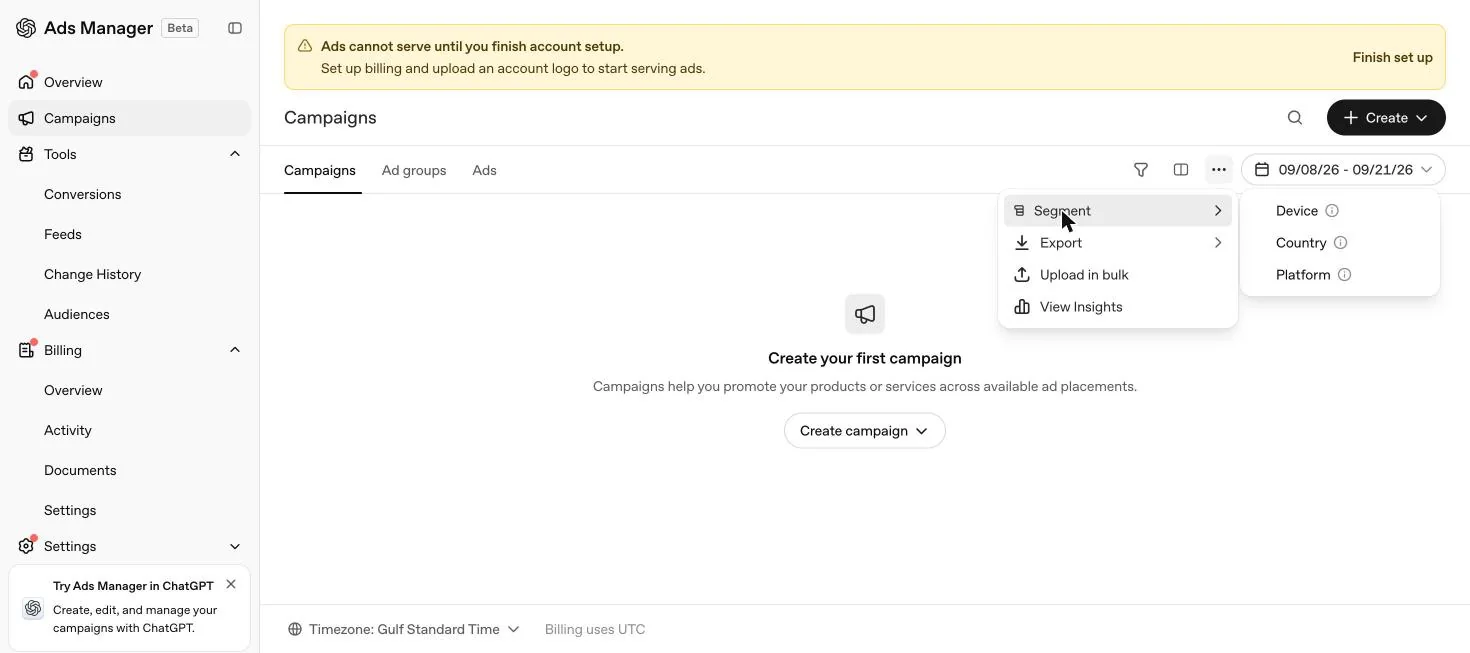
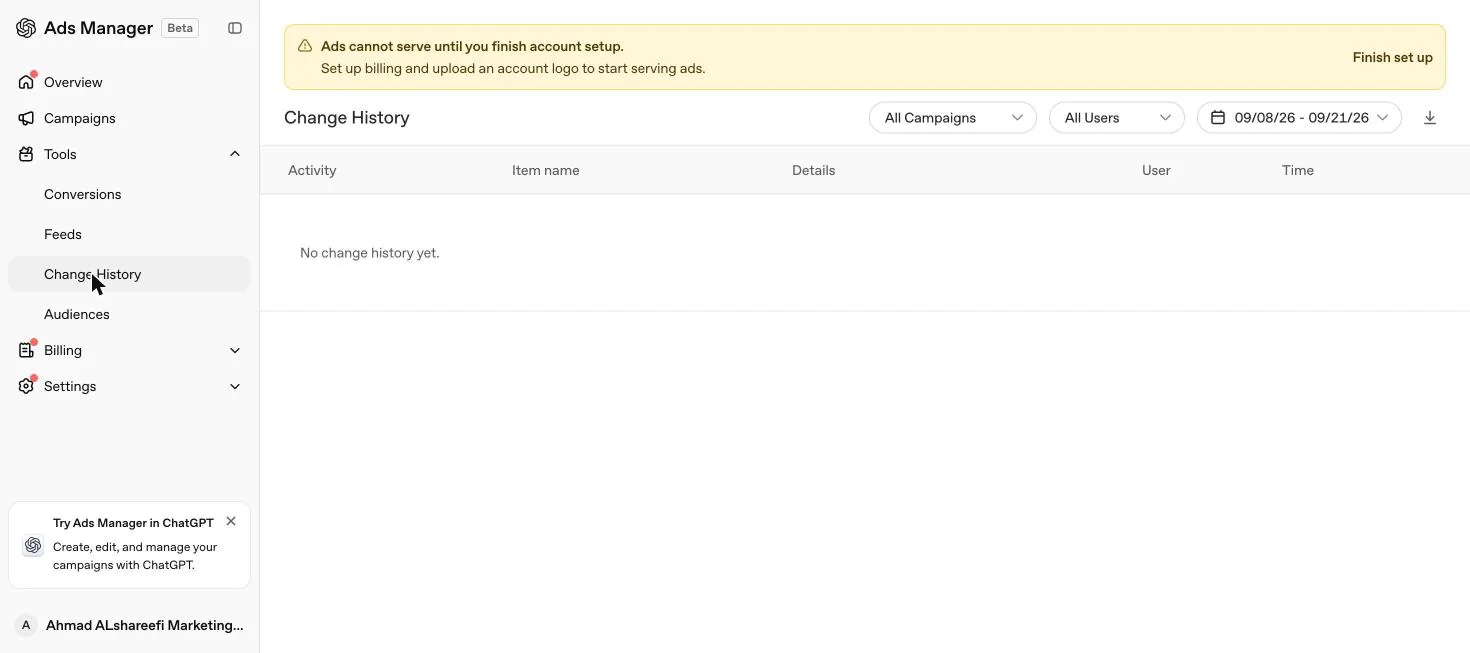
In our own new UAE account, checked on 21 September 2026, the Campaigns screen showed a Timezone selector at the bottom set to Gulf Standard Time, with a note directly beneath it reading "Billing uses UTC". That single line is worth building a habit around: reporting displays in your account's own timezone, but the underlying billing calculation runs on UTC, which is roughly four hours behind Gulf Standard Time. A late evening UAE conversion can land in a different UTC calendar day than the one your Ads Manager screen shows it against. The Overview screen also showed a Performance trend panel with a segment selector, a campaign selector, preset ranges of 7, 14 and 30 days plus a custom range, and four summary tiles for Spend, Impressions, Clicks and CPC, which is the fastest place to sanity check a week's numbers before opening the full table view.
Edit columns: what you can actually add to a report
Table view shows a fixed set of columns by default. The three dot menu's Edit columns option is where the rest of what this page describes actually lives.
| You want to see | Where to add it |
|---|---|
| Conversions split by individual event, not the combined total | Edit columns, Conversions & events, select the specific events |
| Click-through conversions and view-through conversions separately | Edit columns, Conversion Events, select each as its own column |
| Conversions reported by when the conversion happened, not the ad click or view | Edit columns, Conversion Events, select Conversions (by conv. time) |
| A different attribution window | Edit columns, Conversion Events, Attribution windows, choose the click through and view through settings |
| Device, country or platform breakdowns | The Segment menu, separate from Edit columns and from conversion event columns |
Selected event columns also appear in CSV exports once added, and event specific CSV headers can appear as, for example, attributed_event_account_created or attributed_event_registration_completed.
How the Conversions total is built
The Conversions total combines click through conversions and, if the 1 day view through window is switched on, eligible view through conversions, into a single number for the selected scope and date range. You can see the split by hovering over the Conversions column, or by adding Click-through conversions and View-through conversions as their own columns through Edit columns.
A view through conversion is counted when someone converts within one day of seeing an eligible impression and no qualifying click takes the credit for the same conversion. If both an impression and a click qualify, the click wins. This is last touch logic, not multi touch attribution, so a campaign is never credited twice for the same outcome.
To see individual events rather than the combined total, open the three dot menu, choose Edit columns, and select the specific events you want under Conversions & events. Event specific CSV headers can appear as, for example, attributed_event_account_created or attributed_event_registration_completed.
Attribution windows
| Setting | Options |
|---|---|
| Click through window | 7, 14 or 30 days |
| View through window | 1 day, or 0 day which disables it |
Any supported combination of the two can be used, and the choice applies to all conversion columns displayed. These are reporting choices. OpenAI is explicit that they do not change optimisation, bidding or billing, because that logic was already set when the campaign and its conversion event were created. For a UAE service business with a sales cycle that runs past a single site visit, a 30 day click window with the 1 day view through window switched off usually gives the most conservative, most defensible read for comparing against Google and Meta.
Widening the click window from 7 to 30 days will generally increase the reported Conversions total for the same underlying activity, simply because more historical clicks become eligible to receive credit for a given conversion. This is worth knowing before comparing week over week trends across a period where you changed the setting, since the increase reflects a wider net, not necessarily better performance. Keep the window fixed while judging a trend, and only widen it deliberately, with a note of the date you changed it, if you decide a longer window genuinely fits how your customers actually buy.
Event time or conversion time
By default, Conversions are reported on ad event time, meaning the moment of the click or impression that earned the credit, not the moment the conversion itself happened. To report on when the conversion actually occurred, select Conversions (by conv. time) under Conversion Events in Edit columns.
Use conversion time when reconciling against a CRM, because your CRM records when the lead or sale arrived, not when the ad was clicked days earlier. Mixing the two when comparing daily totals is one of the more common causes of a reporting mismatch that looks like a tracking bug but is not one.
Table view, insights charts and where to find each metric
Table view is the default screen in Ads Manager for monitoring performance, and it is available on the Campaigns, Ad Groups and Ads pages. Each shows impressions, clicks, spend, CTR, average CPC, average CPM and conversions directly in the row for that campaign, ad group or ad, once conversion measurement is set up.
For a trend rather than a snapshot, use the chart icon next to the three dot menu, then View insights. You can plot impressions, clicks and spend, individually or together, across a date range you choose. This is the quicker way to notice a budget pacing issue mid week, since a table of daily totals takes longer to scan for a shape than a chart does.
Dynamic URL parameters
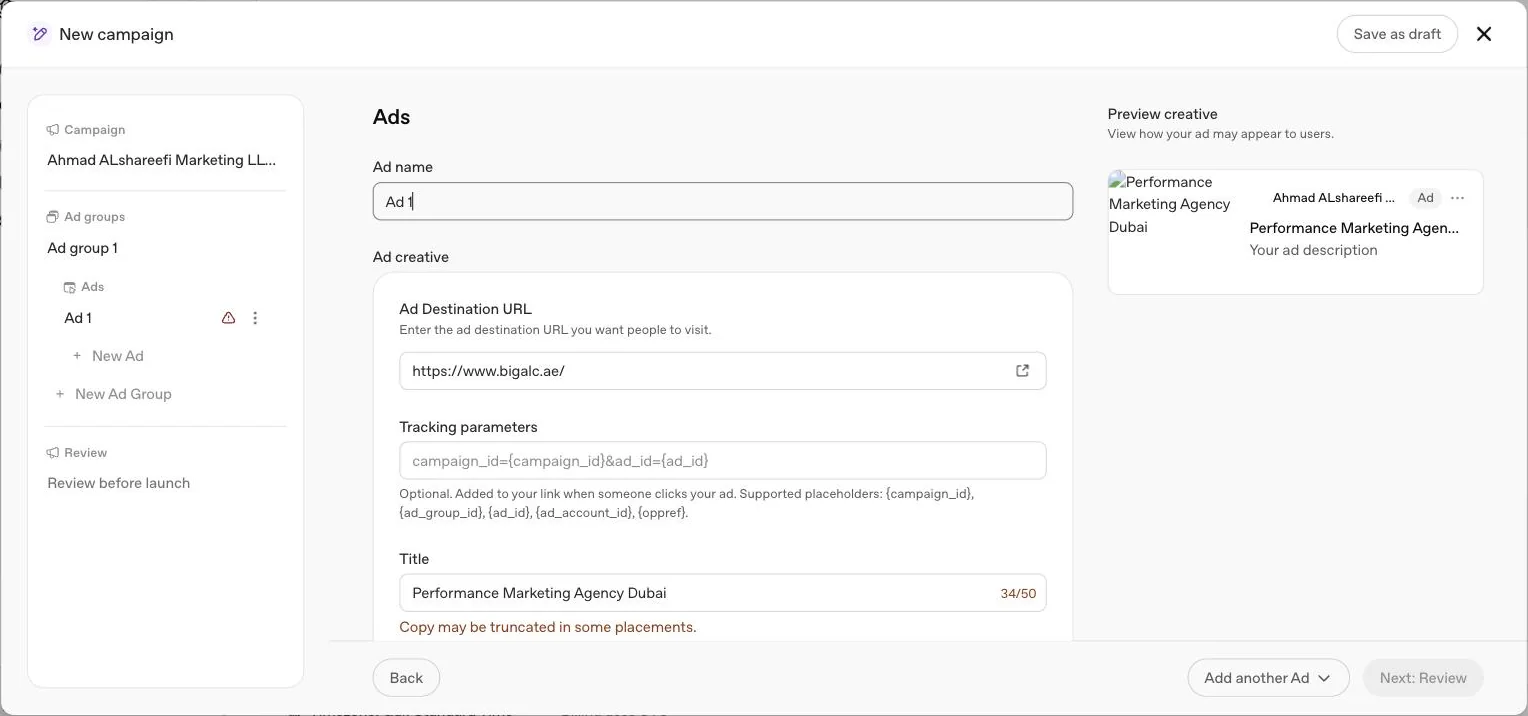
Ads Manager supports adding custom landing page query parameters, using your own text or supported macros such as {campaign_id}, {ad_group_id}, {ad_id} and {ad_account_id}, which are populated automatically at delivery time. These can be set from the three dot menu on the Campaigns, Ad groups or Ads page under Edit campaign, Edit ad group or Edit ad.
| Macro | Populated with |
|---|---|
| {campaign_id} | The ID of the campaign serving the ad |
| {ad_group_id} | The ID of the ad group serving the ad |
| {ad_id} | The ID of the specific ad |
| {ad_account_id} | The ID of the ad account itself |
The hierarchy matters. More specific settings take precedence in this order: Ad URL, then Ad, then Ad Group, then Campaign. If a parameter is already set at the Ad URL level, a setting at campaign, ad group or ad level will not overwrite it. This is worth knowing before you assume a campaign level UTM convention has been applied everywhere, because an individually set ad URL can silently override it. This is distinct from the oppref click reference covered in the conversion tracking guide, which OpenAI appends automatically and which your analytics tools do not control.
Definitions used on this page
Which report to use, when
| You need to | Use |
|---|---|
| A quick pulse check on this week versus last | The Performance trend tiles on the Overview screen, or Insights charts for a visual trend |
| Cumulative totals for every row in the current table | Export current table view |
| Cumulative totals for specific rows you have selected | Export cumulative values |
| Day by day figures to reconcile against a CRM week by week | Export daily values |
| Individual conversion events instead of the combined total | Edit columns, then any of the export options above |
| A trend in impressions, clicks or spend over a custom date range | Insights charts, via the chart icon next to the three dot menu |
What OpenAI has not published, for reporting specifically
Beyond the attribution and lag mechanics covered above, OpenAI's help centre articles are silent on several things advertisers often expect from a mature reporting suite. Reporting outside Ads Manager's table view, chart view and CSV export is documented only in OpenAI's developer docs, through the Advertiser API's Insights endpoints and POST /v1/conversions/insights. There is no stated historical data retention period, so how far back a CSV export can reach is not confirmed in these sources. There is no ROAS metric beyond Order Created ROAS, which only reflects order_created events, so a lead generation or service business has no built in ROAS column at all. Demographic breakdowns are limited to the Segment menu's device, country and platform options; there is no age, gender or interest based reporting breakdown described. Where a report needs any of these, a measurement partner, the Advertiser API or your own analytics tool is the documented route.
The lags that catch people out
- Impressions, clicks and CTR refresh about every 15 minutes.
- Spend can be delayed 7 to 8 hours. A displayed spend of zero does not mean nothing has been charged, and average CPC and CPM depend on settled spend, so they update later too. Hovering over the Spend column header shows how far the spend data extends when a reporting cutoff is available.
- Conversions specifically need 24 to 48 hours, and totals can still change as recent events finish processing.
- For a new campaign with no confirmed delivery and no clear blocker, OpenAI advises allowing at least 24 hours after launch before reporting zero delivery; a hard error or a clear billing or review blocker can go to support straight away.
- Billing and reporting can update on different schedules. A recent invoice can include spend that is not yet visible in the dashboard.
Breakdowns and exports
The Segment menu breaks results down by device, country and platform. It does not add conversion event columns, that is a separate step through Edit columns.
Exports come in three forms.
| Export | What it contains |
|---|---|
| Export current table view | Cumulative metrics for every row in the current table |
| Export cumulative values | Cumulative metrics for the rows you have selected |
| Export daily values | Day by day figures across the date range |
Daily values are what you want for a weekly reconciliation against CRM records, since a cumulative or table export collapses the period into totals you cannot break back apart. Insights charts, opened from the chart icon, plot impressions, clicks and spend over a date range you choose, which is a faster way to spot a pacing problem than scanning a table.
Product reporting
For feed campaigns, the Products tab is an insights backed reporting view, not a complete inventory of your feed. Products only appear once an active campaign has delivered and generated reporting data, and it can take up to seven hours after delivery begins. During ad group setup, use the product count shown there to confirm the feed is ready and how many items pass your filters, rather than relying on the Products tab, which will still look empty or incomplete at that stage.
Product feed ads themselves, per OpenAI's feed campaign documentation, are built from one ad template per ad group, drawing structured fields directly from your feed.
| Field shown on the ad | Source |
|---|---|
| Product image | Selected in the ad template, drawn from the feed |
| Title | From the feed |
| Star rating | From the feed, where supplied |
| Price and sales price | From the feed |
| Brand | Shown on product ads; OpenAI does not say which field supplies it |
If a product is missing from the Products tab after delivery has genuinely started, OpenAI's own checklist before contacting support is to confirm the correct feed is selected, check that the product count during ad group setup matched what you expected, and allow the full seven hours. Support then needs the ad account ID, feed ID, campaign and ad group names, the date range and time zone, example product IDs and a screenshot of the Products tab.
Illustration: reading a week of reporting in AED
This is a worked illustration using hypothetical numbers, not a real result. Suppose a weekly CSV export for a UAE campaign shows spend of AED 1,750, 145 clicks, 9,200 impressions and 6 attributed conversions for the week. CTR is 145 divided by 9,200, or about 1.58 percent. Average CPC is AED 1,750 divided by 145, or about AED 12.07. Cost per conversion is AED 1,750 divided by 6, or about AED 291.67. None of these figures are OpenAI benchmarks or a promise of what your own account will show; they exist only to demonstrate the arithmetic, which is the same arithmetic worth applying to your own export every week rather than reading the Ads Manager tiles alone.
Carousel and product ad formats: what OpenAI has not published for reporting
OpenAI's product feed documentation describes one ad template per ad group, used as the base for every eligible product in that group, showing images, titles, stars, prices and sales prices drawn from the feed. OpenAI's consumer FAQ now says "You will see one ad unit that may contain one or multiple images below a ChatGPT response." and that it is testing a multi image visual ad format during image generation. None of the help centre articles we checked describe reporting metrics broken out per image or per card within a single ad unit, so if a report or a third party tool refers to carousel level metrics for ChatGPT ads, treat it as unverified until OpenAI publishes it directly.
Sending conversions to a CDP or attribution platform
Ads Manager's own reporting, table view, insights charts and CSV export, is not the only way to read ChatGPT ads results. Several of OpenAI's measurement partners are customer data platforms or attribution tools rather than simple pixel forwarders. Hightouch syncs events from a data model you already maintain. LiveRamp takes online and offline conversion feeds. Fospha, INCRMNTAL, Northbeam, Rockerbox, Triple Whale and WorkMagic each apply their own attribution or incrementality modelling on top of the same underlying data. Connecting one of these means your reporting and reconciliation can happen inside a tool you may already use for Google or Meta, rather than exclusively inside Ads Manager. Every one of them still depends on credentials issued in Ads Manager, an API key or a Pixel ID and Conversions API key, so the reporting fundamentals on this page, the 24 to 48 hour lag, the attribution windows, event time versus conversion time, still apply underneath whichever tool displays the final number. Full setup steps are in the measurement partners guide.
Why your numbers will not match your other tools
OpenAI names several reasons a conversion total in Ads Manager will differ from Google Analytics or another ad platform, and states plainly that a difference does not necessarily indicate an error.
- Different attribution methods or attribution windows between tools.
- Event timestamps, reporting time zones or date boundaries that are set differently.
- Browser, consent and storage conditions that affect what each tool can even observe.
- Different deduplication behaviour between platforms.
- Campaign or conversion event configuration differences.
- Modelled conversion reporting, where it is used, which is included in totals but is an estimate rather than a directly observed event.
Before concluding something is broken, confirm you are comparing the same ad account, the same campaigns, the same date range and the same time zone, and check whether each report is using event time or conversion time.
For UAE accounts billed in AED, time zone is worth checking first. Ads Manager reporting and a UAE CRM logging leads in Gulf Standard Time can split the same late evening lead into different calendar days, which shows up as a mismatch in daily totals even though nothing was mis tracked. Set the same time zone in both tools before comparing a single day's figures, and reconcile on a weekly basis rather than day by day while you confirm the pattern is consistent.
What goes wrong, and how to check it
| Symptom | What OpenAI says to check first |
|---|---|
| Zero impressions after launch | Campaign and ad status, account verification and billing, budget and spending allowance, weekly daily budget pacing, and any bid warnings |
| Conversion event reads zero despite firing | Whether the event type or, for custom events, the exact event name matches what is configured on the campaign |
| Reporting does not match expectations | Same account, campaigns, date range, time zone and filters, and whether event time or conversion time is being used |
| Unexpected country delivery | Selected locations and exclusions, since selecting all countries and excluding some can still allow delivery elsewhere |
| Products tab empty or incomplete | Whether the campaign has started, the correct feed is selected, and whether seven hours have passed since delivery began |
If a discrepancy remains after these checks, OpenAI asks for the ad account ID, campaign and ad names, the date range and time zone, a CSV export, an analytics comparison, the Pixel ID, event names, sample conversion timestamps and screenshots before it can investigate further.
Troubleshooting in more depth: a conversion event reading zero
A firing, accepted event can still show 0 in Ads Manager if it does not match the conversion event configured for the campaign. For standard events, the configured event type has to match the event you send. For custom events, Ads Manager has to be set to Event type Custom, and the custom event name has to match the event name you send exactly, not just the display name shown in the interface. Confirm the correct conversion is attached to the campaign before traffic starts, correct the configuration if it is not, and test again with new eligible traffic. OpenAI is explicit that historical events sent under the mismatched setup will not backfill once you fix it. The full mechanics of this matching behaviour are covered in the conversion tracking guide.
Troubleshooting in more depth: clicks that do not match analytics
Ads clicks measure ad interactions directly. Analytics sessions in a tool like Google Analytics depend on page load, redirects, consent settings, browser blocking, UTM handling, attribution windows and time zone settings, none of which affect how Ads Manager counts a click. Compare the same date range and time zone in both tools, then use a CSV export to check campaign and ad level activity rather than trusting a single dashboard number in isolation. A gap here is common and does not by itself indicate a tracking error in either tool, since the two are measuring different things by design.
Setting up reporting before you need it
Add individual event columns before launch
Through Edit columns, so day one reporting already shows the specific conversion event, not just the combined total.
Set the attribution window deliberately
Rather than leaving the default, decide whether a 7, 14 or 30 day click window and a 1 day or 0 day view window fits your sales cycle.
Confirm the account timezone
In our own account it was shown at the bottom of the Campaigns screen, next to a note that billing uses UTC, so check both before reconciling an invoice.
Decide event time or conversion time in advance
Agree with whoever reconciles against the CRM which basis you will use, so a later switch does not look like a discrepancy.
Bookmark the export routine you will actually use
Daily values for CRM reconciliation, cumulative values for a quick campaign level check, current table view for a snapshot to share.
Three UAE scenarios: reading the same report differently
These are illustrations, not real advertiser data, showing why the same Ads Manager screen needs a different reading depending on the business.
Aesthetics clinic. The Conversions total on its own undercounts real value, since consultations booked by phone or WhatsApp travel back through the Conversions API days later. Read the report on conversion time, not event time, and reconcile weekly against the CRM's booking log rather than trusting the daily Ads Manager total alone. OpenAI's eligibility table currently lists minimally invasive cosmetic procedures as not allowed outside the US, so this clinic example cannot run from a UAE account today; see our ChatGPT ads policies guide.
Online perfume store. Purchases mostly complete on the website, so the Conversions total and Order Created Sales and ROAS columns are the most directly useful reporting on this page for that business, since both are built from order_created events specifically. Daily value exports reconciled against actual order data confirm the Pixel and Conversions API are not double counting.
B2B software company. The Conversions total mostly reflects demo requests, a genuinely useful volume metric, but it says nothing about revenue, since the outcome that matters, a signed contract, is not an event the Pixel or a simple Conversions API call typically captures without a CRM stage change feeding it back. Read demo request volume in Ads Manager and track close rate separately in the CRM, rather than expecting one number to represent the whole funnel.
A weekly reconciliation routine for the UAE
- Export daily values every Monday for the previous week, using conversion time rather than event time.
- Match conversions against CRM leads carrying a ChatGPT paid UTM, not against Ads Manager's own total alone.
- Record qualified leads and sales from the CRM, since a raw conversion count can include form views that never became a real enquiry.
- Compare cost per qualified lead with the same week's Google and Meta numbers, using the same currency and date range.
- Change one thing, write down why, and check the effect the following Monday rather than mid week.
None of this replaces good tracking. Reporting can only show what your data source actually received, so set up the underlying tracking correctly first. The conversion tracking guide covers the Pixel, the Conversions API and the oppref click reference, and the event quality guide covers the warnings that show your data source needs attention before you trust what this reporting shows you. If you are running conversion optimised campaigns, cost per conversion here is only meaningful alongside the bid and event choices covered in the conversion campaigns guide.
How reporting connects to the rest of the account
Reporting sits at the end of a chain, not at the start of one. A number in this guide is only as trustworthy as the setup that produced it. Tracking has to be built first, covered in the conversion tracking guide, which explains the data source, the Pixel, the Conversions API and the oppref click reference that every conversion number on this page ultimately depends on. Event quality, covered in the event quality guide, is the ongoing health check on that same tracking, and a warning there is often the real explanation behind a reporting number that looks wrong. If the campaign generating the report is a conversion optimised one, the conversion campaigns guide covers what Bid Cap, oCPC and oCPM actually mean for the cost and outcome metrics this page teaches you to read. Read in that order, tracking, event quality, campaign mechanics, then reporting, each guide answers the question the previous one raises rather than repeating it.
Before you contact support about a reporting problem
Reconfirm the basics
Same ad account, same campaigns, same date range, same time zone, in both the report you are questioning and whatever you are comparing it against.
Check event time versus conversion time
A mismatch here alone can explain a daily total that looks wrong without anything being broken.
Allow the documented lag
Around 7 to 8 hours for spend and 24 to 48 hours for attributed conversions, before treating a gap as a fault.
Pull the CSV export
Rather than relying on the table view alone, since a discrepancy report needs the underlying rows, not a screenshot of a summary.
Assemble what OpenAI asks for
Ad account ID, campaign and ad names, date range and time zone, a CSV export, an analytics comparison, the Pixel ID, event names, sample conversion timestamps and screenshots of the discrepancy, before writing to support.
Quick answers
How long do conversions take to show?
OpenAI says to allow 24 to 48 hours for attributed conversions to appear, and that totals may change as recent events are processed.
What attribution windows can I choose?
A 7, 14 or 30 day click through window, and either a 1 day view through window or view through switched off. Any combination of the two is supported.
Does changing the attribution window change bidding?
No. OpenAI states that changing the reporting window affects reporting only, not optimisation, bidding or billing.
Is ChatGPT ads reporting multi touch attribution?
No. OpenAI says the feature uses its existing last touch attribution logic. If both an impression and a click qualify for the same conversion, the click gets the credit.
Why is my ChatGPT ads reporting not matching my analytics?
OpenAI lists attribution methods and windows, time zones, event timestamps, consent and browser conditions, deduplication and configuration as normal reasons for a difference. Compare the same date range, time zone and account before assuming an error.
Can I add UTM or other parameters to my ChatGPT ads landing pages?
Yes. Dynamic URL parameters, including custom text and macros such as campaign, ad group, ad and account ID, can be set at ad URL, ad, ad group or campaign level, with the most specific level taking precedence.
Why does the Products tab look empty after my product feed campaign launched?
The Products tab only lists products with delivery data from an active campaign. It is not a full inventory of your feed, and it can take up to seven hours after delivery begins to populate.
What information does OpenAI ask for when reporting looks wrong?
Ad account ID, campaign and ad names, date range and time zone, a CSV export, an analytics comparison, the Pixel ID, event names, sample conversion timestamps and screenshots of the discrepancy.
Does ChatGPT ads reporting break out carousel card level metrics for product feed ads?
OpenAI's help centre articles describe product feed ads as one ad template per ad group, showing product images, titles, stars, prices and sales prices. Its consumer FAQ says an ad unit may contain one or multiple images, and that a multi image visual ad format is being tested during image generation, but no article we checked describes reporting metrics per image or per card.
Can I send ChatGPT ads conversions into a CDP or attribution platform instead of reading them in Ads Manager?
Yes, through the measurement partner integrations OpenAI supports, several of which are customer data platform or attribution tools such as Hightouch, LiveRamp, Fospha, INCRMNTAL, Northbeam, Rockerbox, Triple Whale and WorkMagic. Each connects with credentials issued in Ads Manager, either an Ads Manager API key or a Pixel ID and Conversions API key.
What can I add to a report through Edit columns?
Individual conversion events, Click-through conversions, View-through conversions, Conversions (by conv. time), and attribution window settings, all found under Edit columns on the Campaigns, Ad groups or Ads page.
What timezone does ChatGPT ads reporting use?
Your ad account's own timezone. In our own account in September 2026 it was shown at the bottom of the Campaigns screen, with a note that billing uses UTC, which is worth checking before reconciling an invoice against a daily report.
Related
Conversion tracking
oppref is the click reference OpenAI adds to ChatGPT ad landing URLs. How the Pixel stores it, why Pixel plus Conversions API beats either alone, and WhatsApp sales in the UAE.
ChatGPT ads cost in AED
OpenAI publishes no rate card. Here is what it does publish: billing by objective, a suggested starting CPC bid, the AED 65 daily minimum and how budgets really pace.
Event quality
Every event quality warning OpenAI shows for a Pixel or data source, what each one actually means, and the specific fix for each, including UAE CRM setups.
Measurement partners
Every measurement and mobile measurement partner OpenAI supports for ChatGPT ads, what each connects, and the setup steps published for each one.